Using the Web Workbench
The Evergreen Web Workbench is a browser-based application for exploring application version data tracked by the Evergreen module. It is available on any platform - open it at:
TIP
The Web Workbench can be installed as a Progressive Web App (PWA) for a standalone app experience. Use your browser's install option to add it to your desktop or home screen.
Dashboard
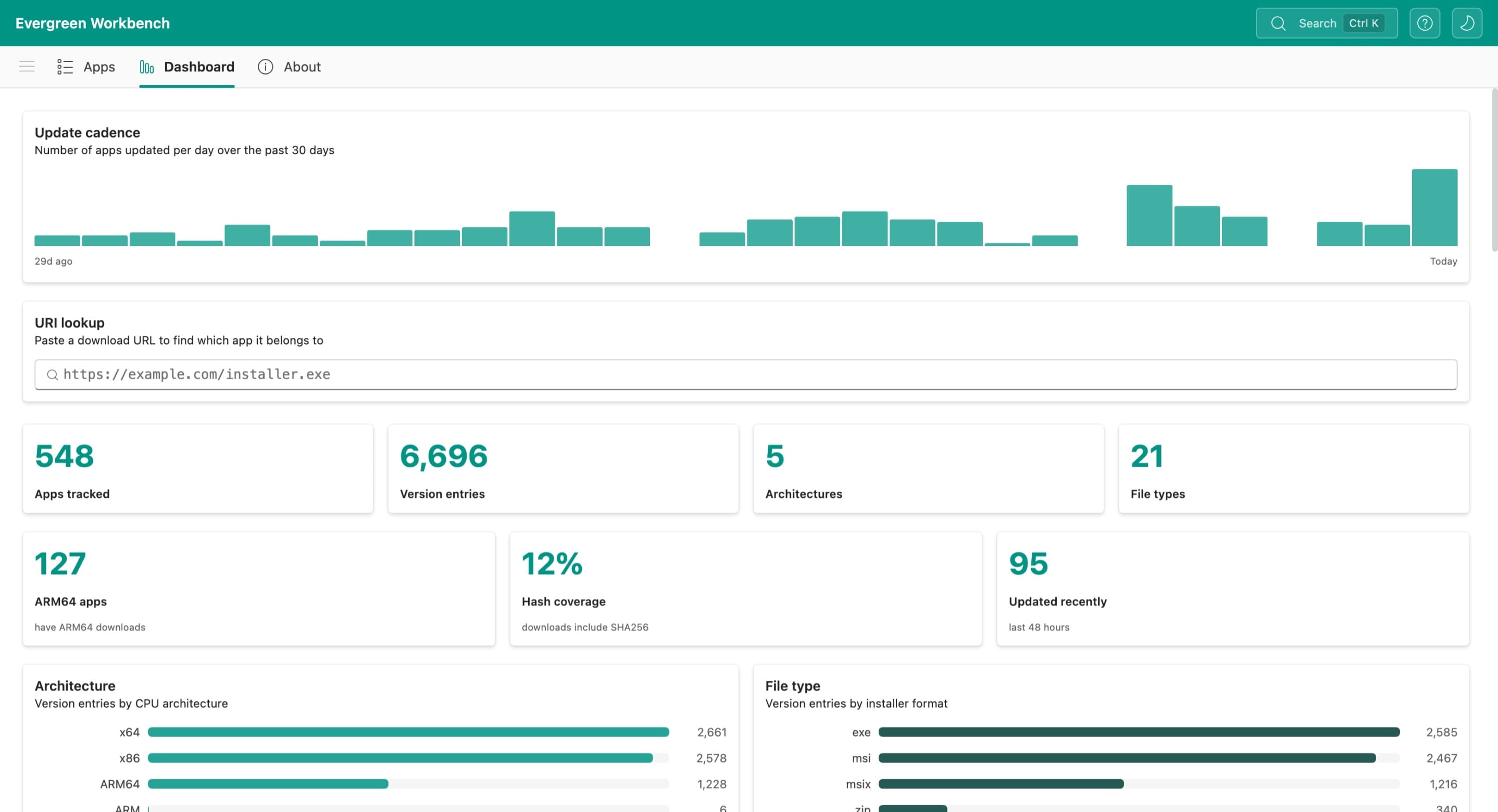
The Dashboard provides an at-a-glance summary of all applications tracked by Evergreen.
Summary statistics
The top row displays key metrics:
| Metric | Description |
|---|---|
| Apps tracked | Total number of applications tracked by Evergreen |
| Version entries | Total number of version records across all applications |
| Architectures | Number of distinct CPU architectures (x64, x86, ARM64, etc.) |
| File types | Number of distinct installer formats (exe, msi, msix, zip, etc.) |
| Updated recently | Applications with data updates in the last 48 hours |
Charts
Two horizontal bar charts visualise the distribution of version entries:
- Architecture - breakdown by CPU architecture (x64, x86, ARM64, aarch64, etc.)
- File type - breakdown by installer format (exe, msi, msix, zip, cab, etc.)
URI lookup
Paste a download URL into the URI lookup field to find which Evergreen application it belongs to.
Recent activity
A list of applications with the most recent data updates, showing the application name and how recently it was updated.
Apps view
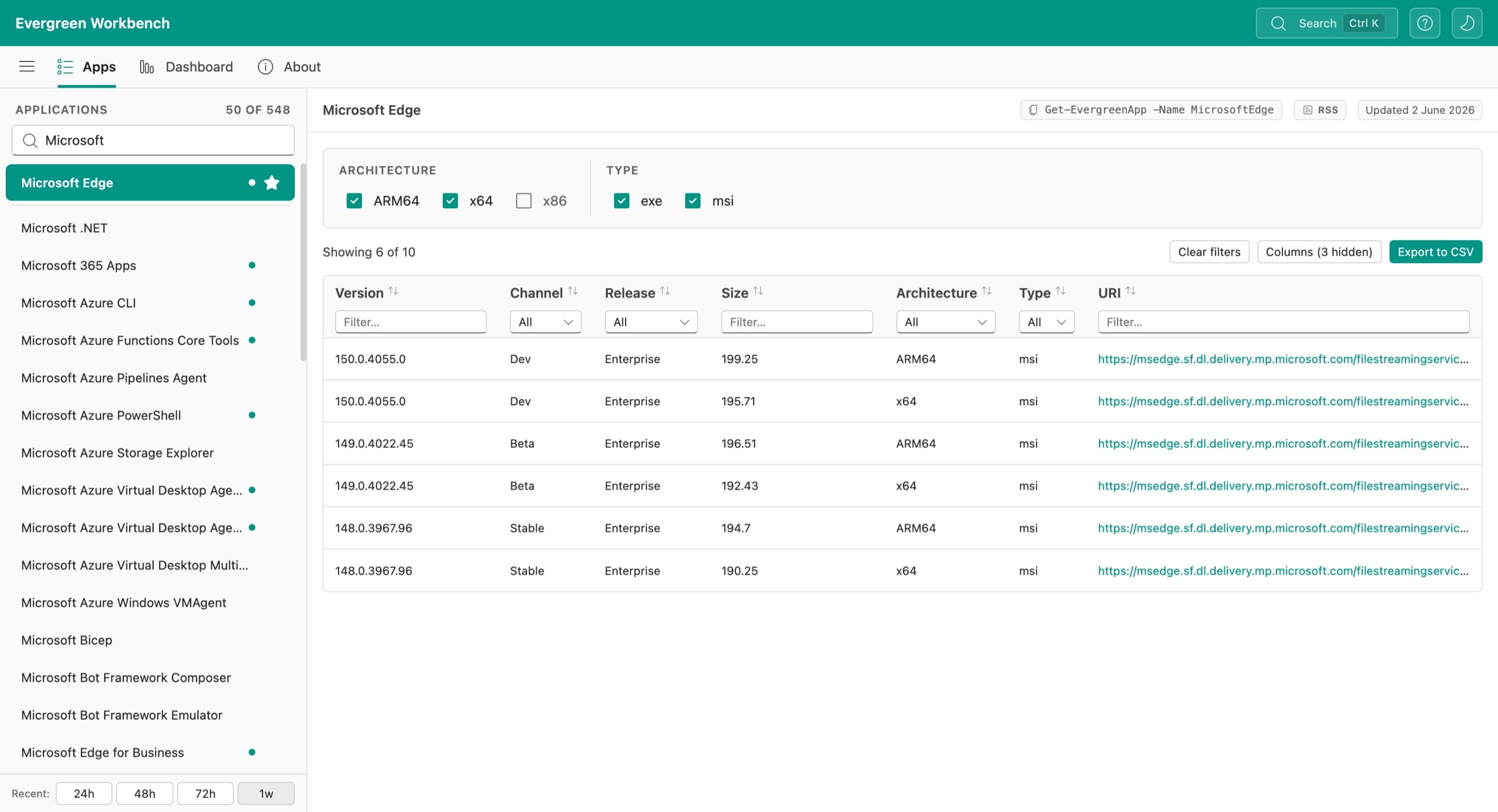
The Apps view lists all Evergreen-supported applications in a sidebar on the left with version detail on the right. Select an application to view its version entries.
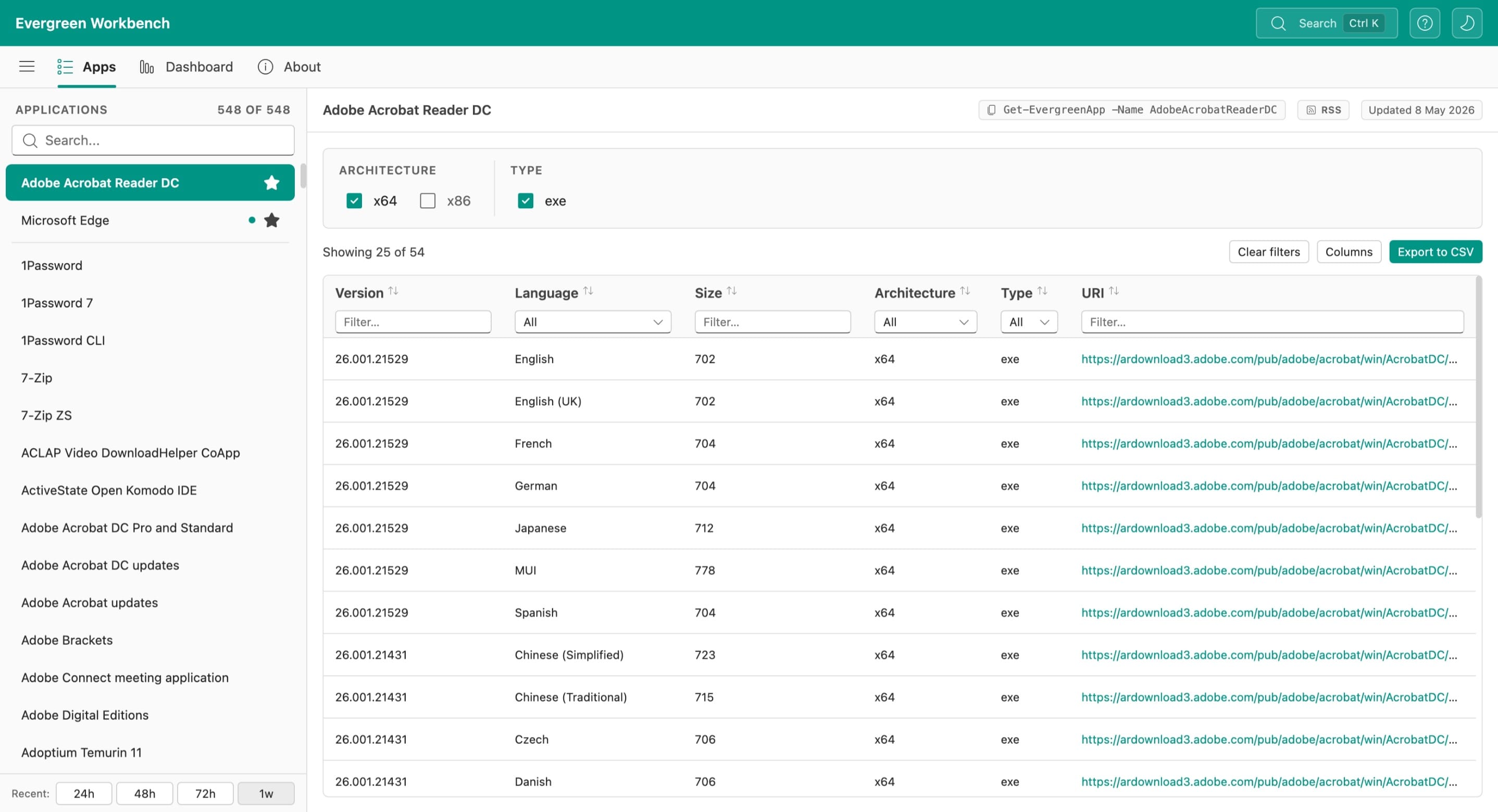
The sidebar displays:
- Application count - showing the total and any active filter count
- Search box - type to filter the application list by name
- Star icon - applications with recent updates are highlighted
- Recent filter - filter the sidebar to show only applications updated in the last 24h, 48h, 72h, or 1 week
The version detail table shows columns for:
| Column | Description |
|---|---|
| Version | Application version string |
| Language | Language or locale for the installer |
| Size | Installer file size in MB |
| Architecture | CPU architecture (x64, x86, ARM64, etc.) |
| URI | Direct download URL for the installer |
Additional columns (Channel, Release, Date, Expiry, SHA256, Type) are available depending on the application. Use the Columns button to show or hide columns.
Architecture and type filters
At the top of the detail pane, checkbox filters let you narrow results by architecture (e.g., x64, x86) and file type (e.g., exe, msi). The count of matching results updates as you toggle filters.
Toolbar
The toolbar above the version table provides:
- Get-EvergreenApp command - a copy button with the PowerShell command to retrieve the same data (e.g.,
Get-EvergreenApp -Name AdobeAcrobatReaderDC) - RSS - link to the RSS feed for the selected application
- Updated date - shows when the application data was last refreshed
- Clear search - clear the sidebar search text
- Clear filters - reset all column and architecture/type filters
- Columns - show or hide table columns
- Export to CSV - download the current filtered view as a CSV file
Filtering
Each column in the version detail table has a text filter field below the header. Type into any filter to narrow the results to matching rows.
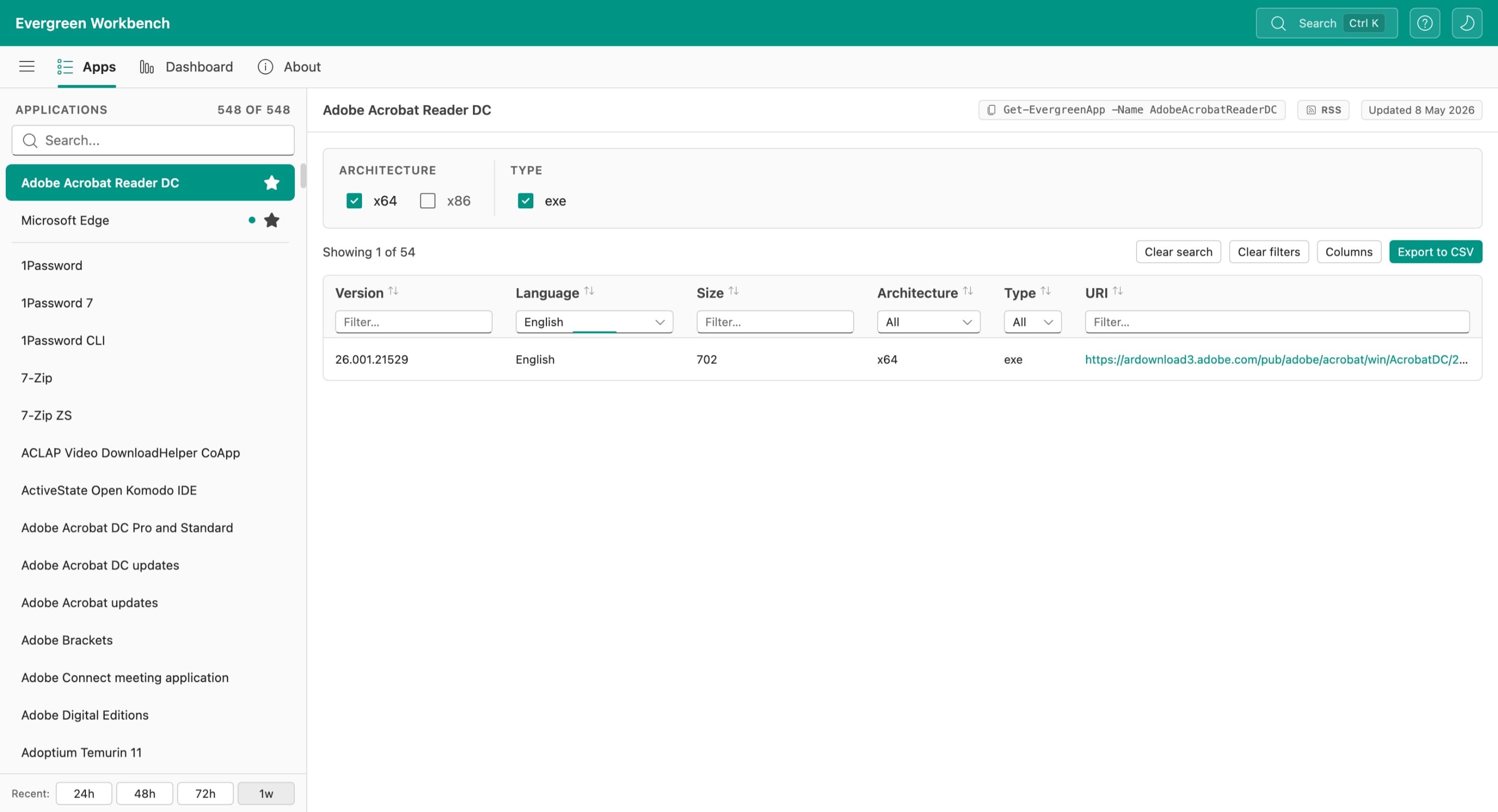
Column filters work together with the architecture and type checkbox filters. For example, you can select the x64 architecture checkbox and type "English" in the Language filter to show only English x64 installers.
Click Clear filters to reset all column filters, or Clear search to reset the sidebar search.
Searching
Sidebar search
The search box at the top of the application sidebar filters the app list as you type. This filters by application name only.
Global search
Press Ctrl+K (or click the search icon in the top bar) to open the global search overlay. Global search finds matches across all application names and download URIs.
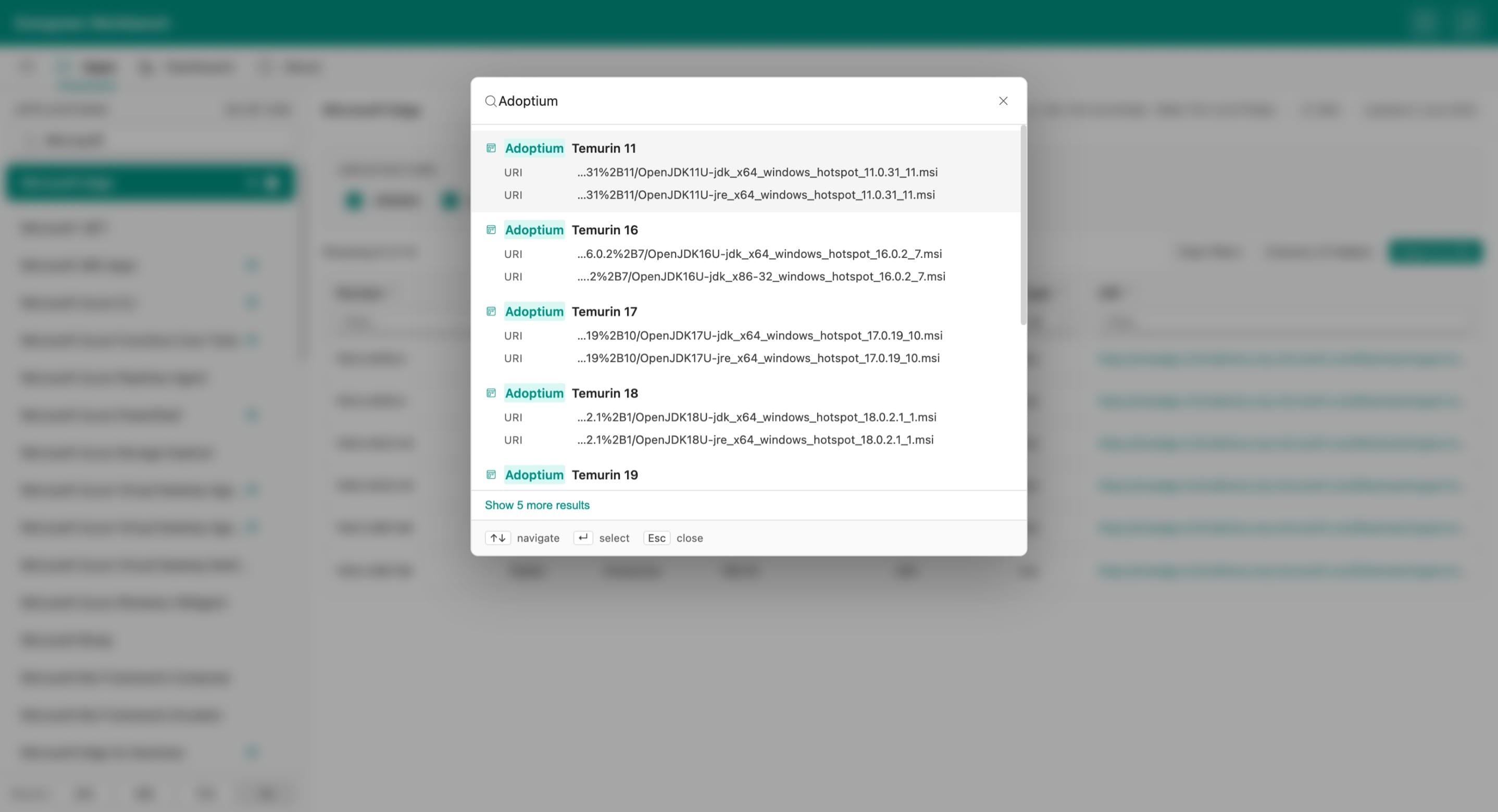
Use the arrow keys to navigate results and press Enter to select. Press Esc to close the search overlay.
Additional features
Install as a PWA
The Web Workbench is a Progressive Web App. Use your browser's install option (typically in the address bar or browser menu) to install it as a standalone application on Windows, macOS, Linux, or mobile devices.
Theme
Toggle between light and dark themes using the theme button (moon/sun icon) in the top-right corner of the page.
RSS feeds
Each application has an RSS feed available via the RSS link in the toolbar. Subscribe to an application's feed to be notified when new version data is available.
Keyboard shortcuts
Press ? to view available keyboard shortcuts. Key shortcuts include:
- Ctrl+K - open global search
- ? - show keyboard shortcuts