Using the Desktop Workbench
Beta
The Desktop Workbench (EvergreenUI) is currently in pre-release. Features and commands may change before the stable release.
INFO
This page reflects EvergreenUI features and functions starting with version 1.0.21.
Launching the Workbench
Import the module and run Start-EvergreenWorkbench to open the Evergreen Workbench window:
Import-Module EvergreenUI
Start-EvergreenWorkbench
The Workbench restores the last view you used when you reopen it. If the saved view is disabled, it falls back to the Apps View.
Use the navigation rail toggle to switch between expanded and compact navigation.
Apps View
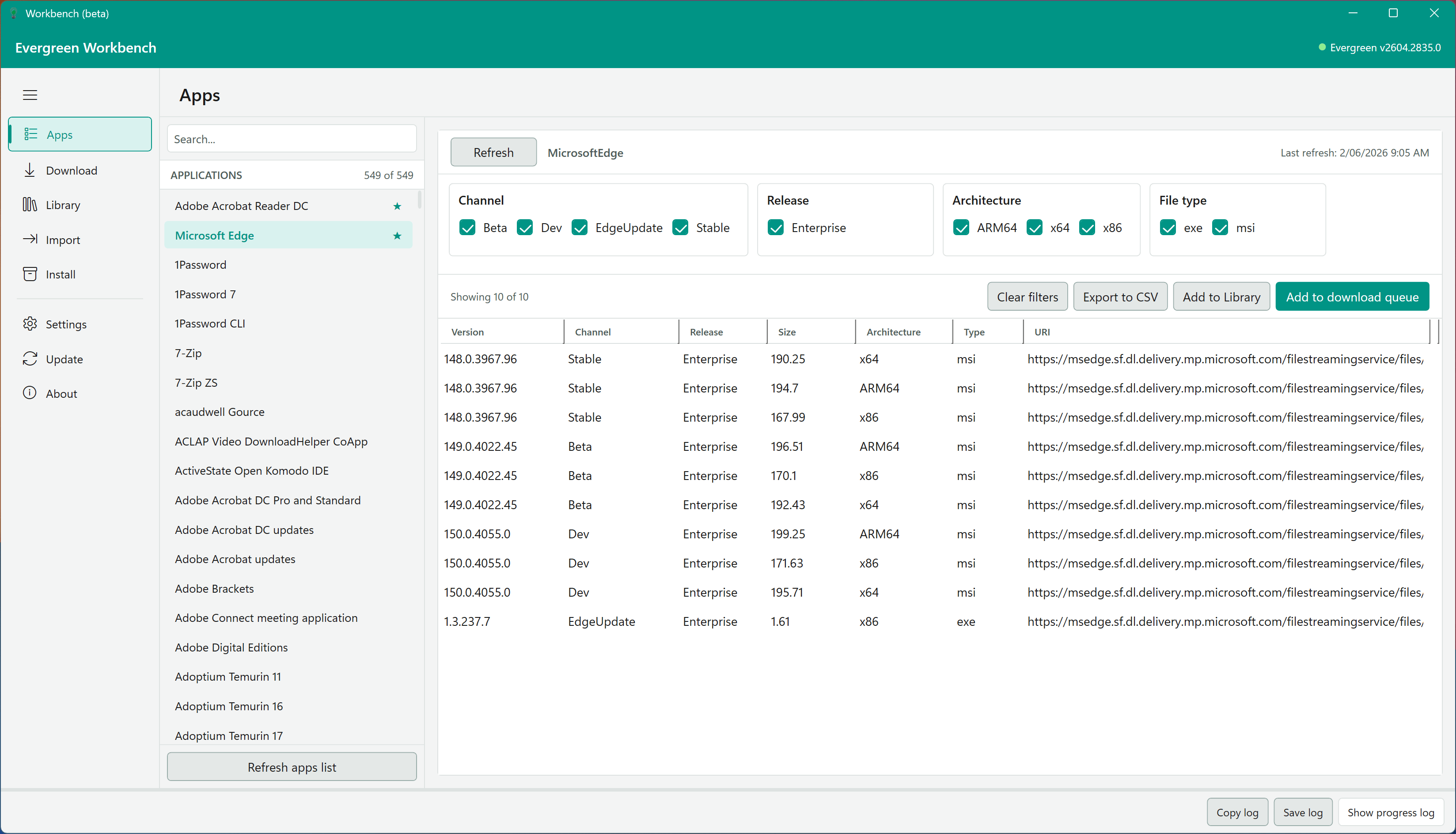
The Apps View displays all 500+ applications supported by the Evergreen module in a searchable data grid. Select an application from the list on the left to view version and download metadata returned by Get-EvergreenApp.

Use the search box at the top of the application list to filter by name. The data grid on the right shows version details including Version, Date, Channel, Release, Architecture, Type, and URI.
You can star frequently used applications from the left list. Favourites are pinned to the top of the list and saved in your local Workbench settings.
The app detail header also shows a Last refresh timestamp when cached data exists for the selected app. Below is the Apps View showing favourited applications pinned at the top with star indicators and App Detail header showing Last refresh timestamp.
Dynamic Filters
When you select an application, the filter panel updates automatically based on the properties that application returns. For example, selecting Adobe Acrobat Reader DC displays filters for Language, Architecture, and Type.

Available filter properties vary by application and can include:
| Property | Example values |
|---|---|
| Architecture | x64, x86, ARM64 |
| Channel | Stable, Beta, Dev |
| Ring | Production, Enterprise |
| Language | English, English (UK) |
| Type | exe, msi, msix, zip |
| Release | General, Enterprise |
Select values in the filter panel to narrow down the results. Use Clear filters to reset, or Export to CSV to save the filtered results.
The versions grid supports column sorting. Click a column header to sort ascending, then click again to sort descending.
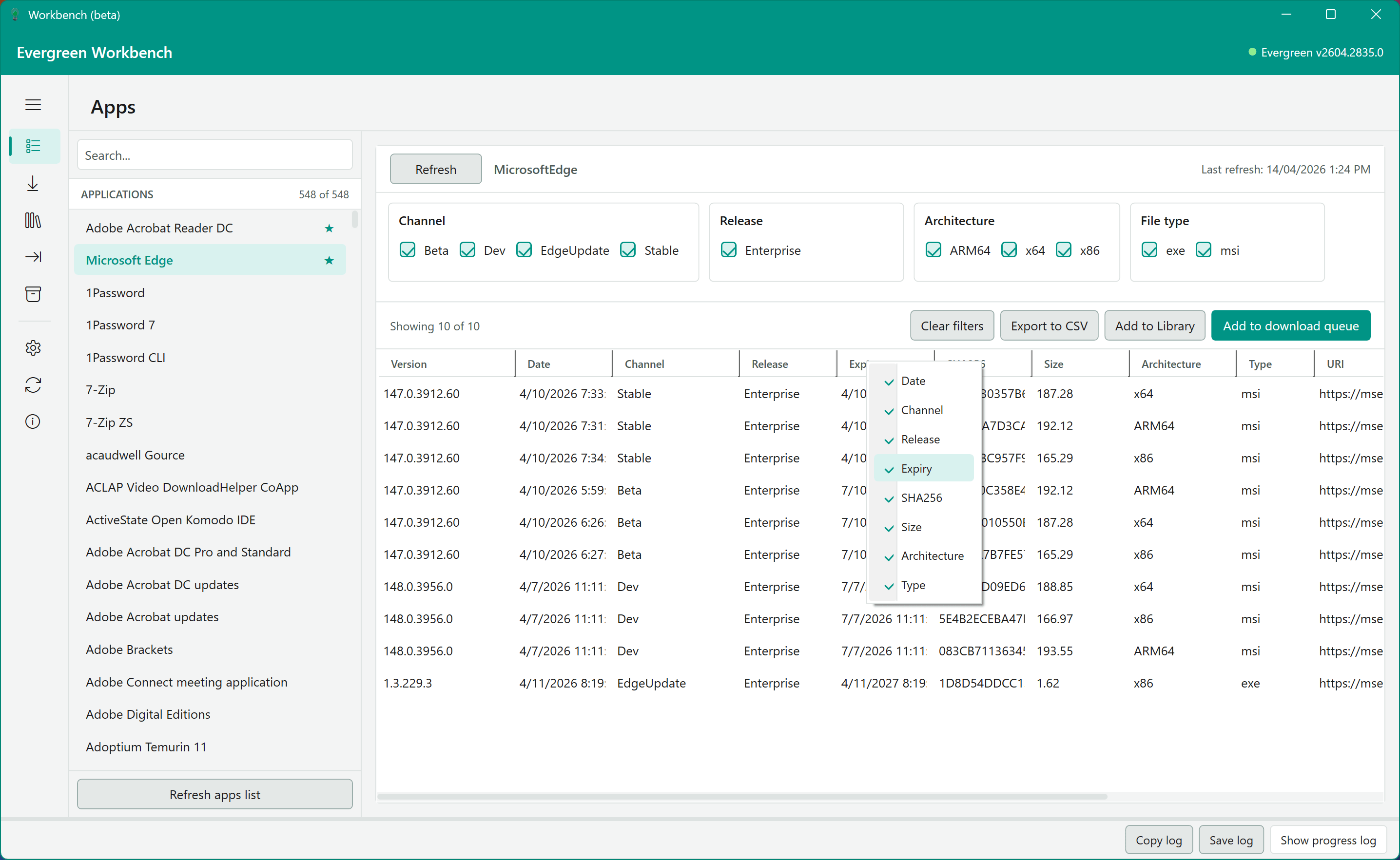
You can also right-click a column header to show or hide optional columns. Structural columns such as Version and URI remain visible.
Download View
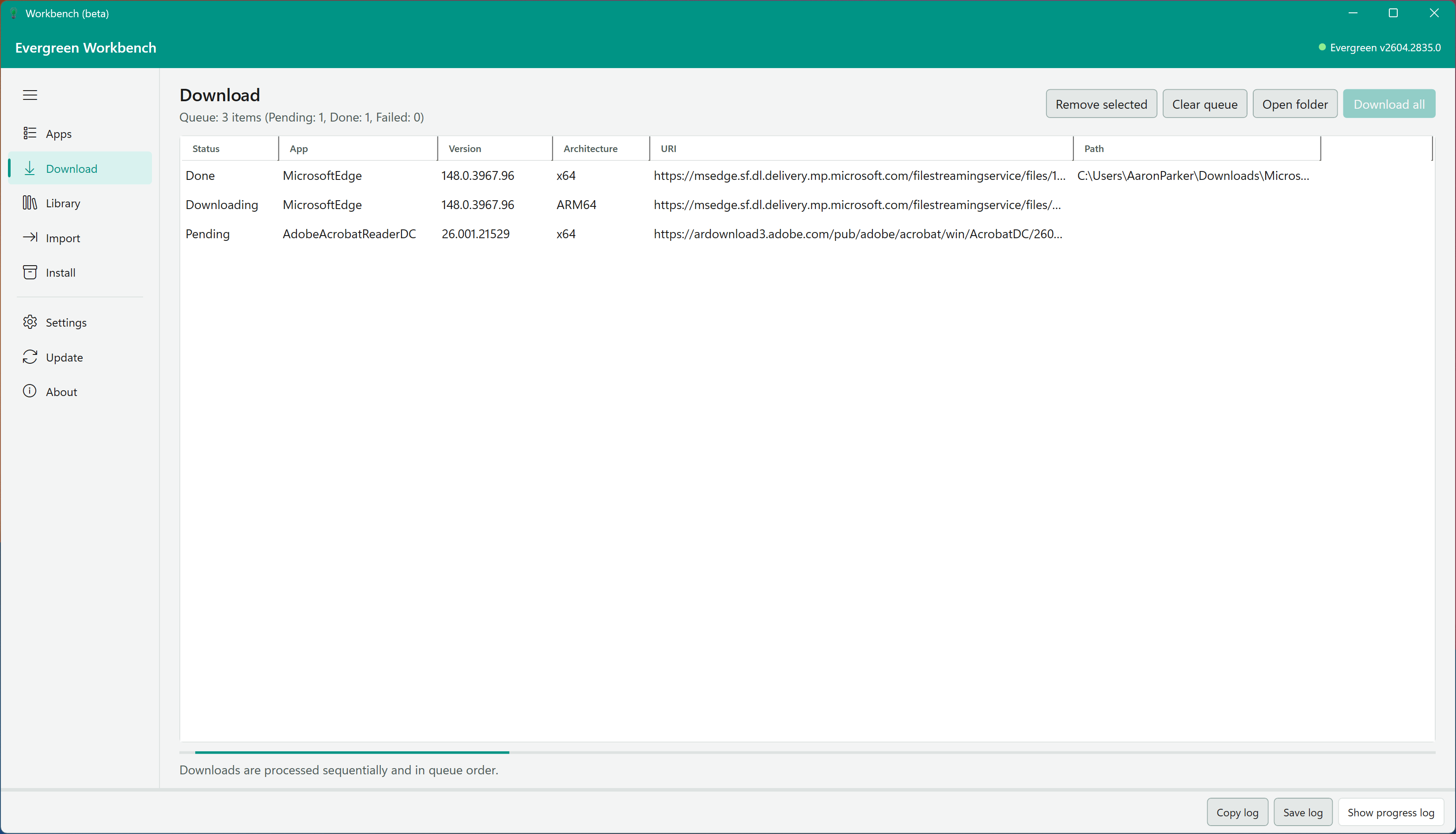
To download application installers, select versions in the Apps View and click Add to download queue. Switch to the Download View to manage and start downloads.

The Download View shows the queue with Status, App, Version, Architecture, URI, and Path columns. The Path column is filled after a download completes. Use the toolbar to:
- Remove selected - remove items from the queue
- Clear queue - remove all items
- Open folder - open the download output folder
- Download all - start downloading all queued items sequentially
A progress bar at the bottom tracks the current download. Downloads are processed sequentially and in queue order. The download queue grid supports column sorting.
Library View
If you have an existing Evergreen library, the Library View provides a GUI for browsing and updating it. Enter or browse to your library path to load the library contents.

The Library View displays:
- Library contents - a table of applications in the library with app name, version count, and path
- Selected app details - version, URI, type, size, SHA256 hash, release, and file path for each version of the selected application
Use the toolbar to:
- Browse - select a library path
- Open folder - open the library directory
- New Library - create a new Evergreen library (
New-EvergreenLibrary) - Refresh Library - reload the library contents (
Get-EvergreenLibrary) - Update Library - download the latest versions into the library (
Start-EvergreenLibraryUpdate)
Install View
The Install View loads package definitions from a directory, compares the defined application versions against what is currently installed on the machine, and allows you to install or update applications directly.
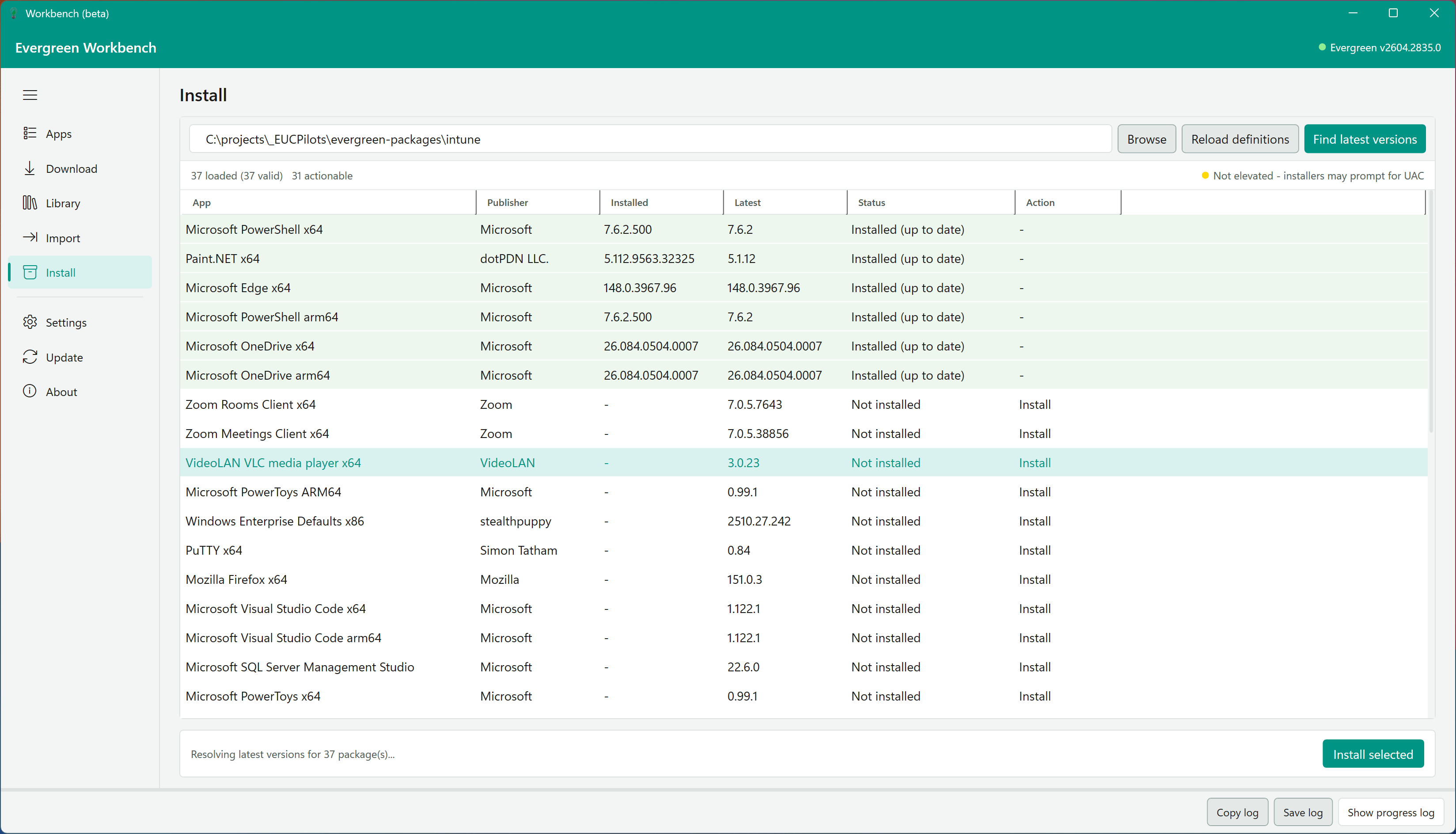
Each row shows:
- App - the application name and architecture
- Publisher - the application publisher
- Installed - the version currently installed on the machine (if any)
- Latest - the latest version available from Evergreen
- Status - whether the app is installed (up to date), installed (update needed), installed (latest not checked), or not installed
- Action - the available action: Install, Update, or none
Use the toolbar to:
- Browse - select the directory containing package definitions
- Load definitions - load or reload the package definition files
- Find latest versions - query Evergreen for the latest version of each defined application
- Install selected - install or update the selected applications
INFO
If the Workbench is not running elevated, installers may prompt for UAC elevation.
Import Tab
The Import Tab provides workflows for importing application packages into external platforms. It has four sub-tabs: Microsoft Intune Win32 Apps, Nerdio Manager Shell Apps, Microsoft 365 Apps, and Authentication.
Import-related modules are loaded when you first open the Import Tab. Until required modules finish loading, sign-in and import actions remain disabled.
Microsoft Intune Win32 Apps
Validation recommended
Import workflows are available, but tenant-specific packaging and assignment behavior should be validated in your environment before production rollout.
Browse to a directory containing Intune package definitions, load them, and compare against the Win32 apps currently in your Intune tenant.
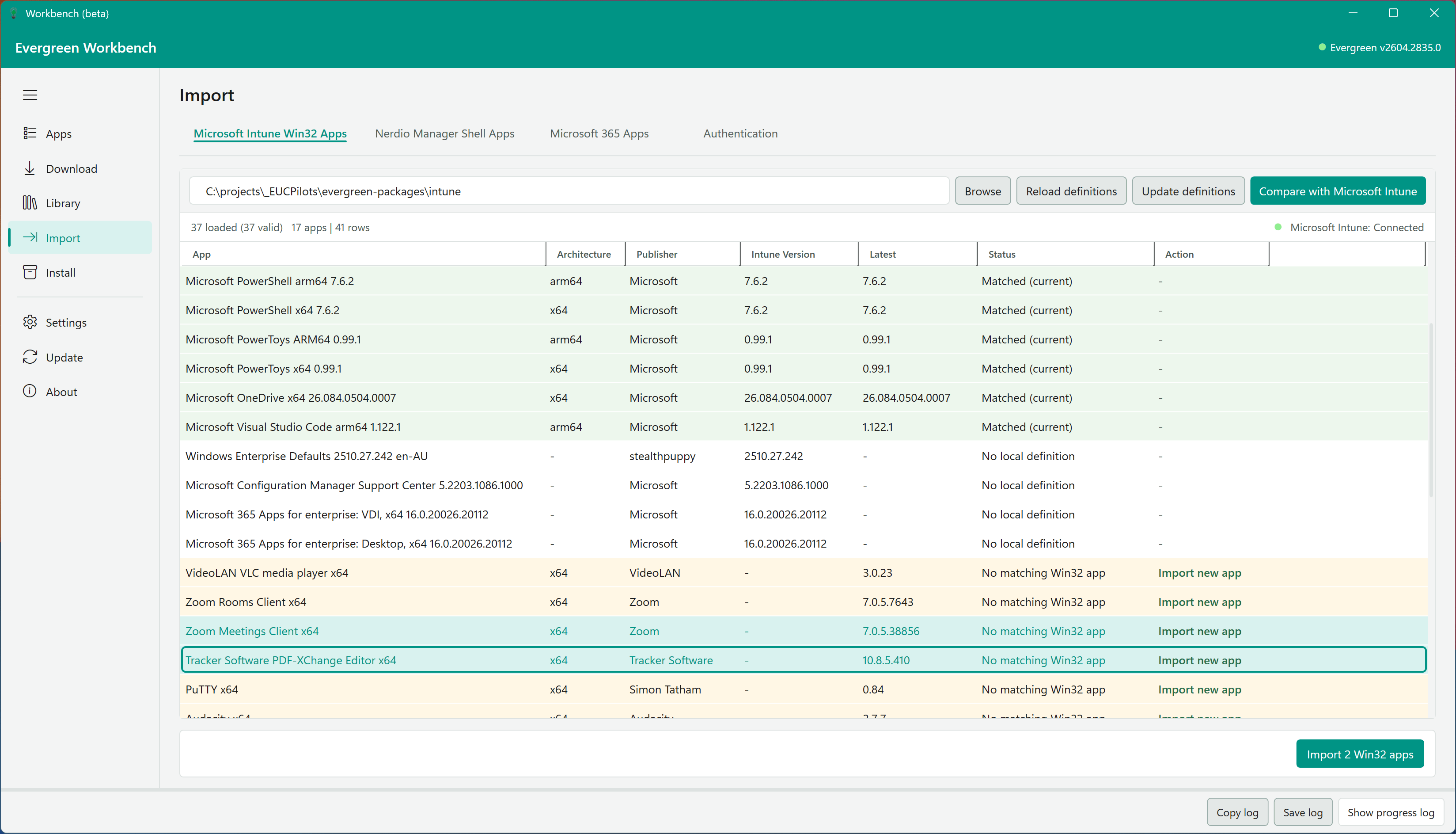
The data grid shows reconciliation rows with these columns: App, Publisher, Intune Version, Latest, Status, and Action.
Action values indicate what to do next:
- Import new app - definition is not in Intune yet
- Import new version and supersede - app exists in Intune and needs an update
- Fix in definition - duplicate definition GUID or other definition issue
- - - no action required
Use the action bar to manage definitions and import:
- Reload definitions - reload the definitions list from disk
- Update definitions - resolve the latest Evergreen version for each definition and update
App.jsonand detection rules in place; the definitions list reloads automatically when complete - Compare with Microsoft Intune - build the reconciliation list
- Import Win32 app - process selected actionable rows
Nerdio Manager Shell Apps
Validation recommended
Nerdio import workflows are available, but you should validate API permissions, definition mappings, and post-import behavior in your environment.
Browse to a directory containing Nerdio Manager Shell App definitions, load them, and compare against the Shell Apps in your Nerdio Manager environment.
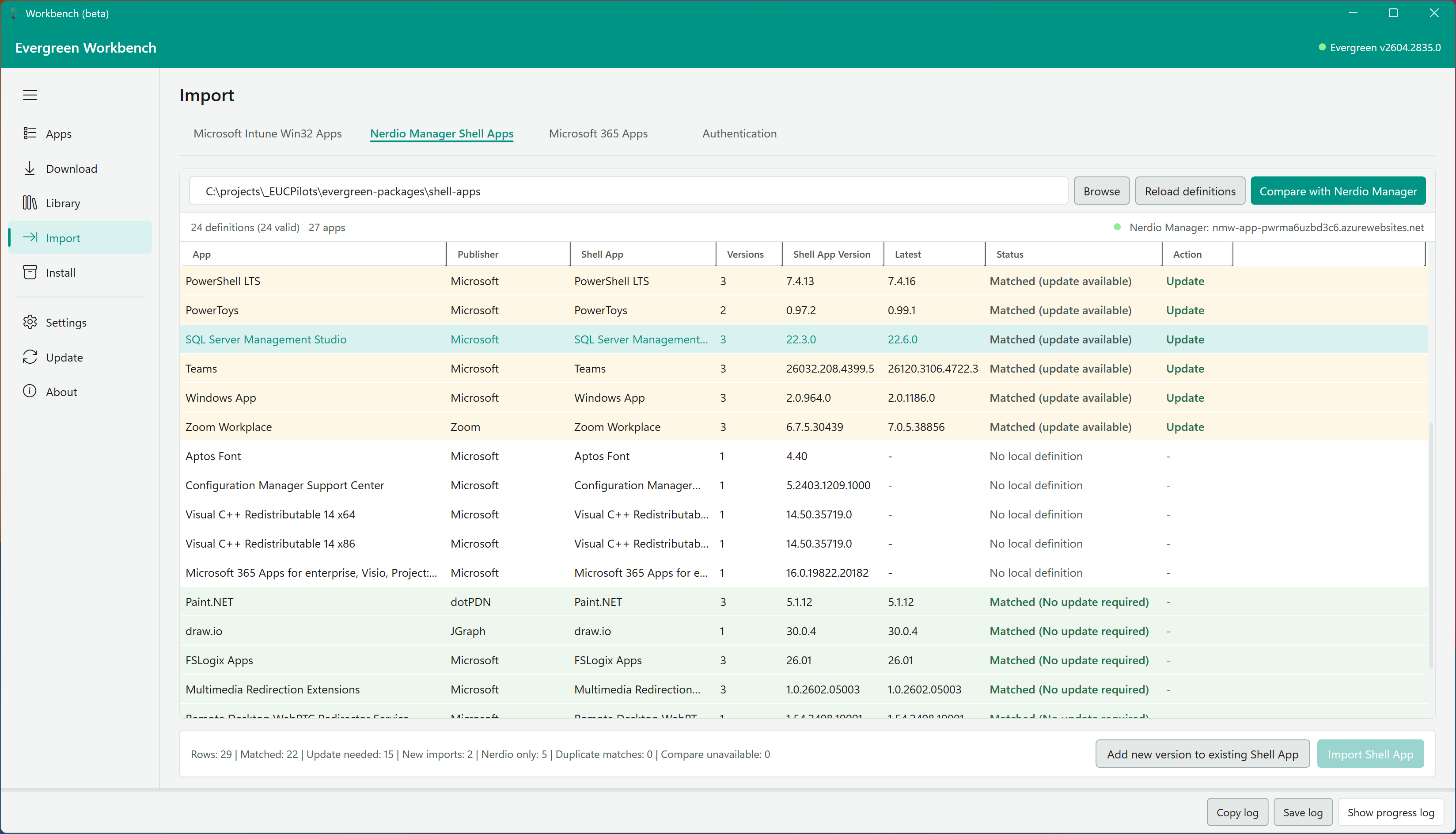
The data grid shows the status of each definition - whether it is matched to an existing Shell App, whether an update is available, and the current versus latest Evergreen version. The status bar summarises the comparison results.
Use Compare with Nerdio Manager to build the reconciliation list. Then use Add new version to existing Shell App or Import New App for the selected row.
Microsoft 365 Apps
Validation recommended
The Microsoft 365 Apps workflow is available for both Intune and Nerdio Manager scenarios. Validate your XML configuration, packaging output, and tenant permissions before production use.
Browse to a folder containing Office Deployment Tool XML configuration files and click Load configurations.
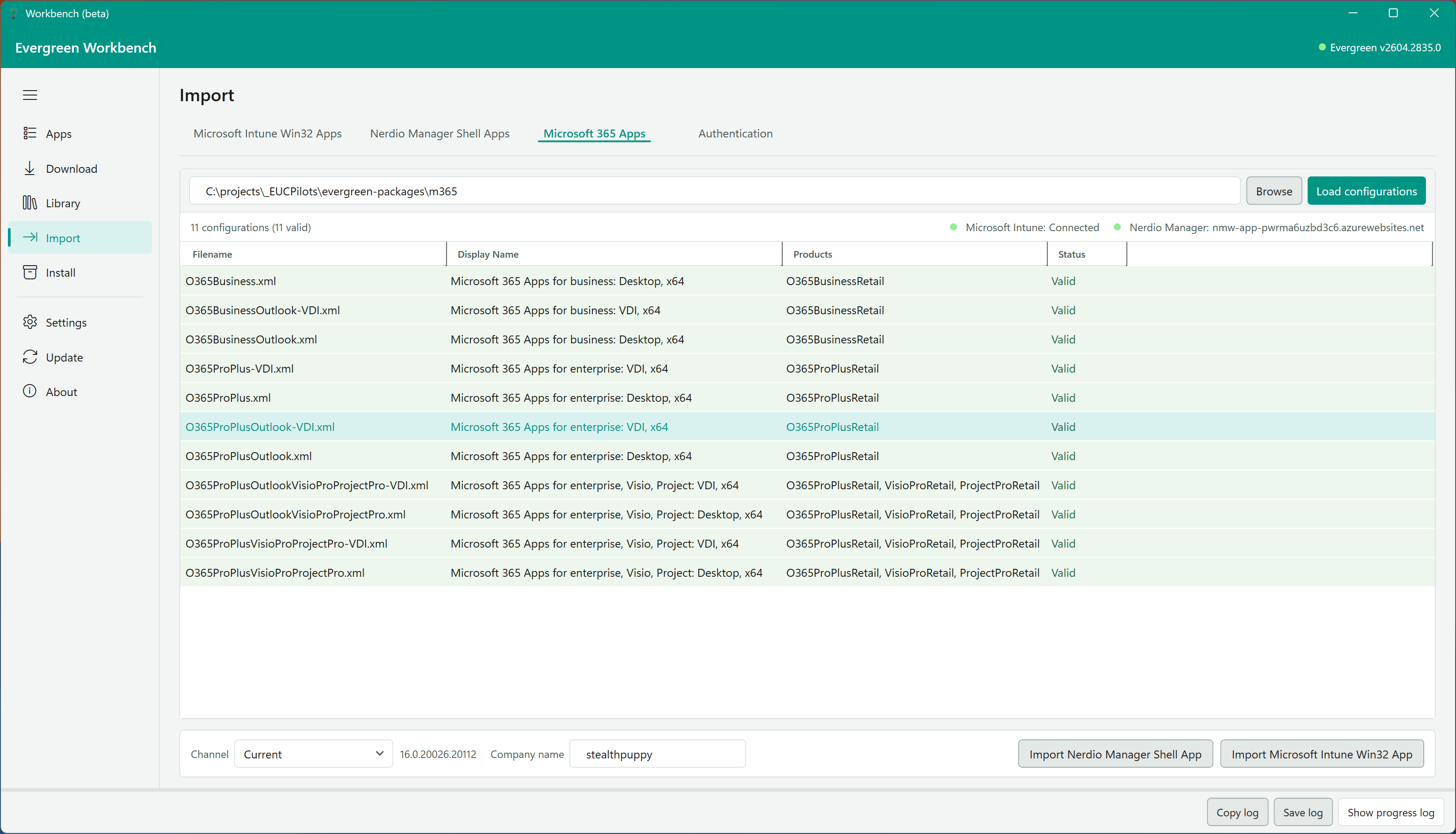
The grid shows each configuration with:
- Filename - XML file name
- Display Name - generated app display name
- Products - parsed products and target details
- Status - configuration validation result (for example Valid, No ID, or Invalid XML)
Use the action bar to configure packaging and import:
- Channel - selects the Microsoft 365 update channel used for package generation
- Company name - required value injected into package metadata
- Import Nerdio Manager Shell App - builds and imports the package to Nerdio Manager
- Import Microsoft Intune Win32 App - builds and imports the package to Intune
For the Nerdio workflow in EvergreenUI 1.0.20, Workbench reads shell app definition files from a shell-app subdirectory next to the XML configurations, validates required files (Definition.json, Detect.ps1, Install.ps1, Uninstall.ps1), and creates the Shell App from that definition. This flow no longer depends on IntuneWin32App for Nerdio imports.
Connection indicators on this tab show both Microsoft Intune and Nerdio Manager authentication status.
Package definitions
Package definitions for Install and Import functionality can be found here: https://github.com/EUCPilots/evergreen-packages.
INFO
These package definitions should be validated before use. The long term intention is to create a single unified package definition for Intune Win32 apps and Nerdio Manager Shell Apps.
Authentication
The Authentication sub-tab manages connections to Entra ID, the Nerdio Manager API, and Azure Storage. These connections are required for Intune, Nerdio Manager, and Microsoft 365 Apps import workflows.
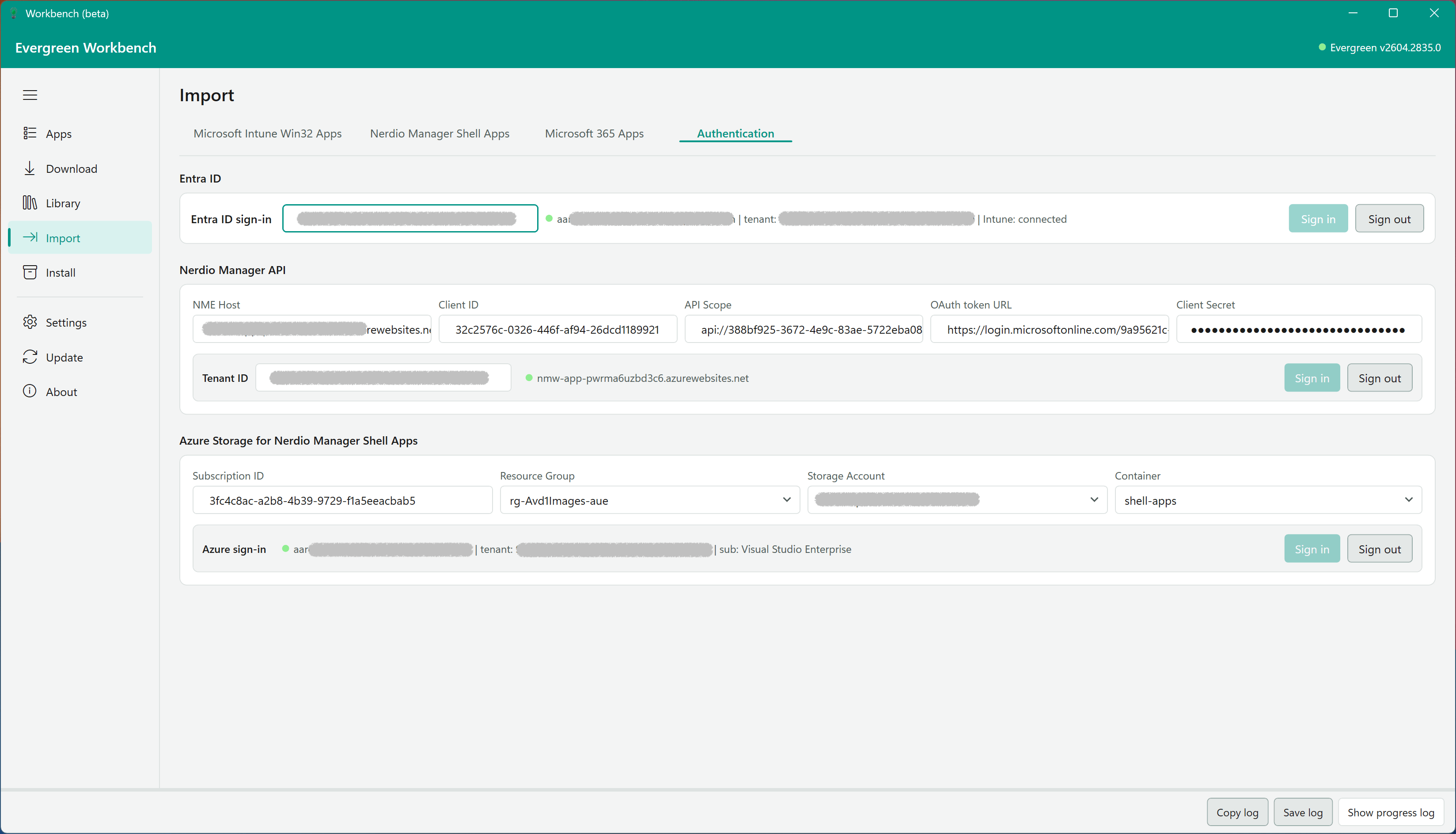
Configure the following:
- Entra ID - enter an optional tenant ID, then use Sign in to connect to Microsoft Intune
- Nerdio Manager API - provide the NME Host, Client ID, API Scope, OAuth token URL, Client Secret, and Tenant ID to connect to Nerdio Manager
- Azure Storage for Nerdio Manager Shell Apps - optionally configure a Subscription ID, Resource Group, Storage Account, and Container for storing application packages
Update View
The Update View runs Update-Evergreen from the GUI to synchronise the local application definitions cache with the latest release from the evergreen-apps repository.
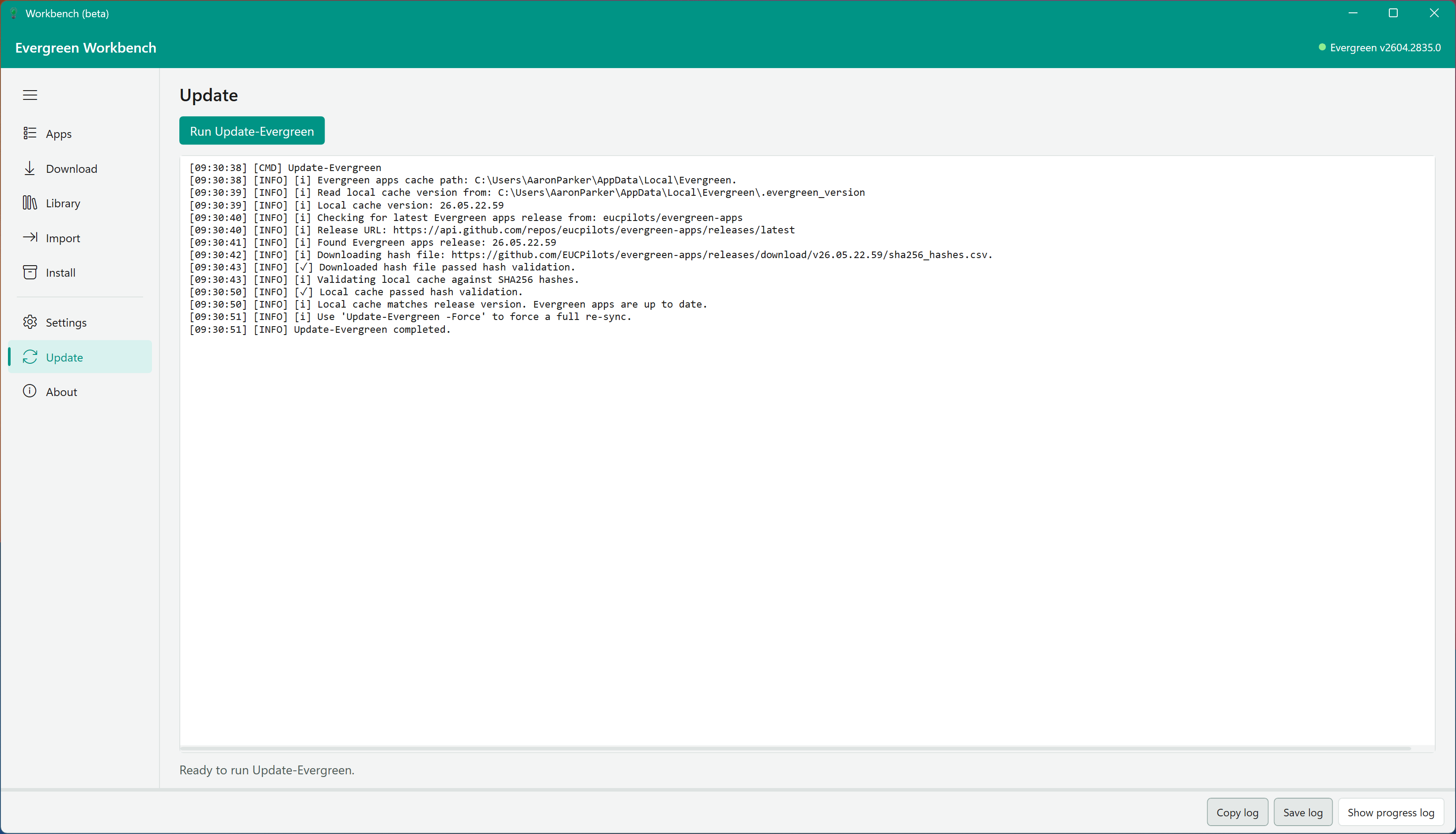
Click Run Update-Evergreen to start the update. The output panel displays timestamped log messages showing the cache check, download, hash validation, and sync progress.
About View
The About View shows the loaded EvergreenUI module metadata including name, version, prerelease label, project URI, and description.
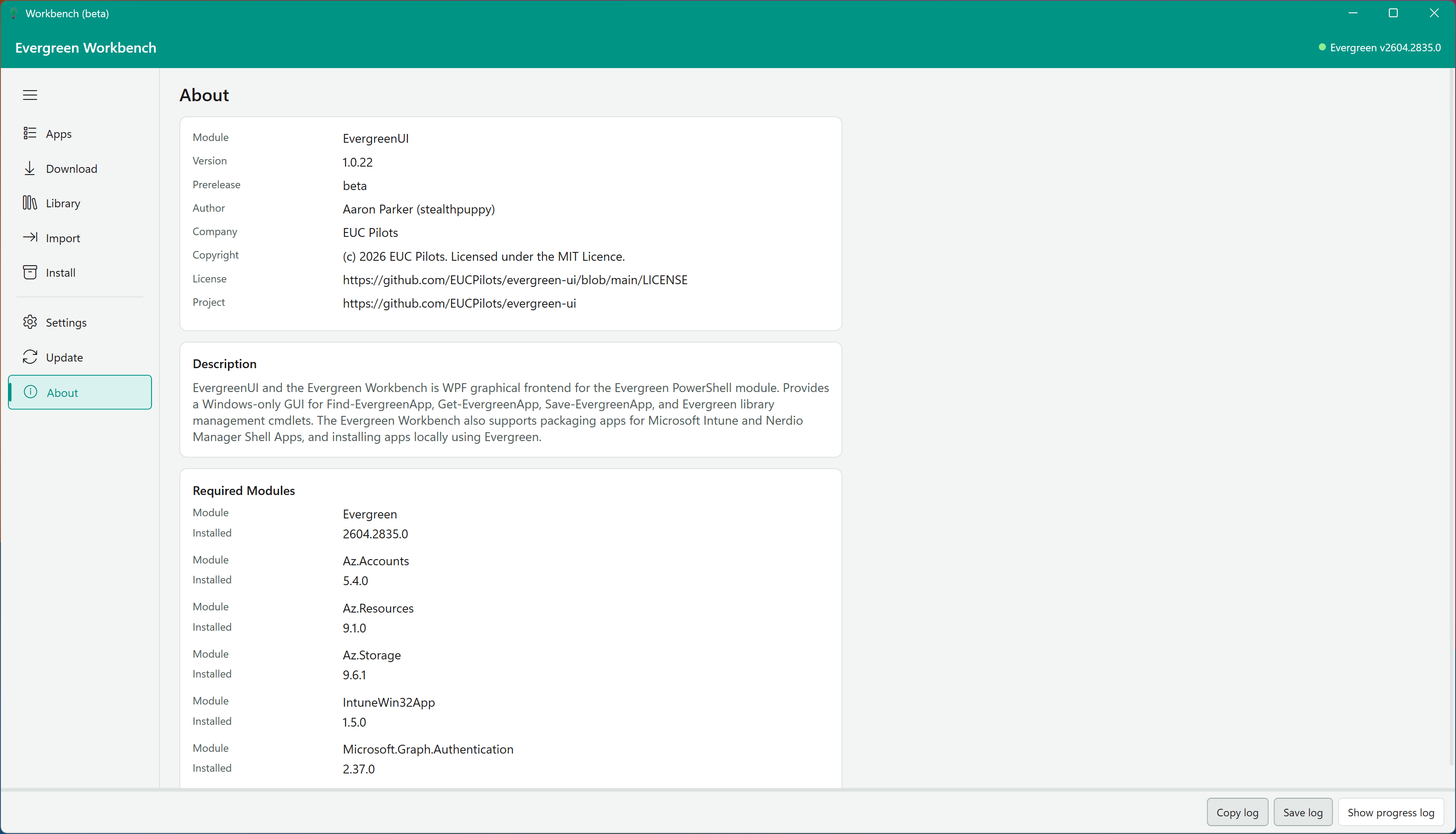
It also includes a Required Modules section that lists module dependencies used by import workflows and shows whether each module is installed.
Settings
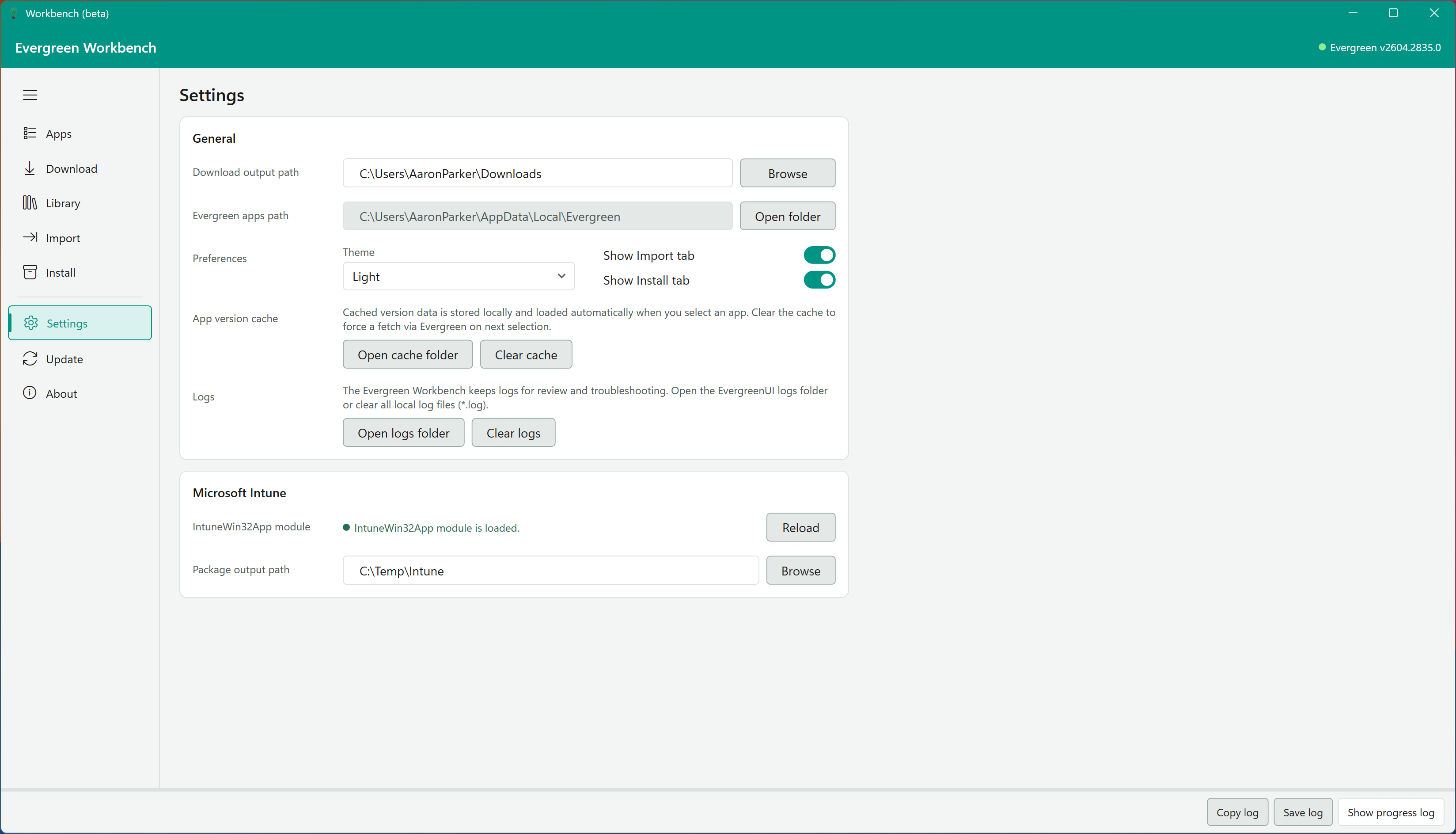
The Settings View configures general preferences and provider-specific options.
General
- Download output path - default directory for downloaded application installers
- Evergreen apps path - path to the local Evergreen application definitions cache (read-only, shows the value from
Get-EvergreenAppsPath) - Theme - switch between Light and Dark themes
- Show Import tab / Show Install tab - toggle visibility of the Import and Install views
- App version cache - cached version data is stored locally and loaded when you select an app; use Clear cache to force a fresh query on next selection
- Open cache folder - open the local app version cache folder
Microsoft Intune
- IntuneWin32App module - status indicator showing whether the IntuneWin32App module is loaded; use Reload to re-import
- Package output path - directory for Intune Win32 package output files
Logs
- Open logs folder - open the local EvergreenUI logs directory
- Clear logs - delete local
.logfiles from the EvergreenUI logs directory
Log Panel
The Log Panel at the bottom of the window displays timestamped messages at three levels:
- Info - progress updates and status messages
- Warning - non-critical issues (e.g., a download URL returned a redirect)
- Error - failures during version lookups, downloads, or library updates
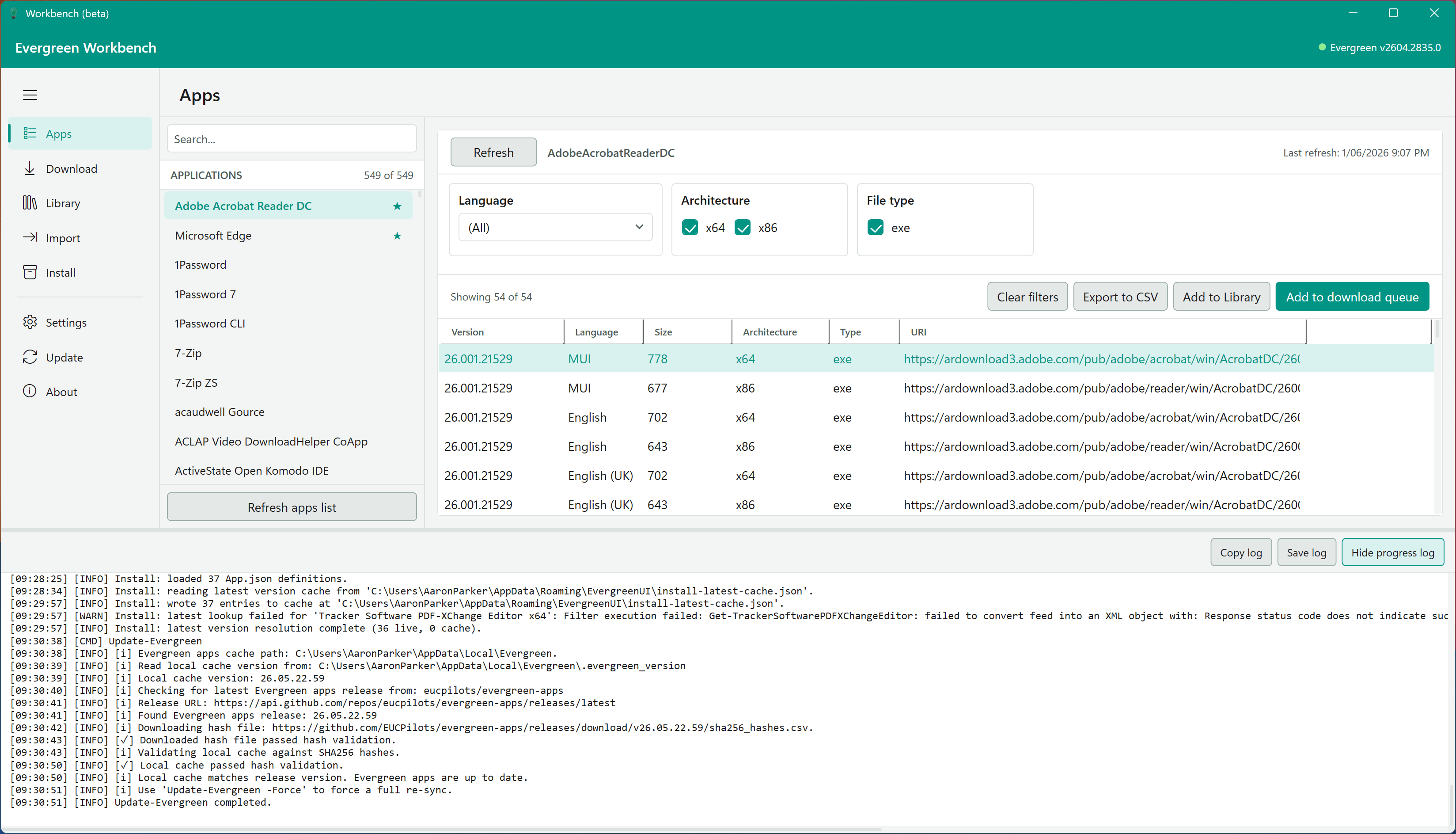
Use Copy log, Save log, or Show progress log / Hide progress log to manage the log output. Log messages are generated in real time from background runspaces as operations execute.